
Modify Your Data Upload Settings with Your Own Preferences
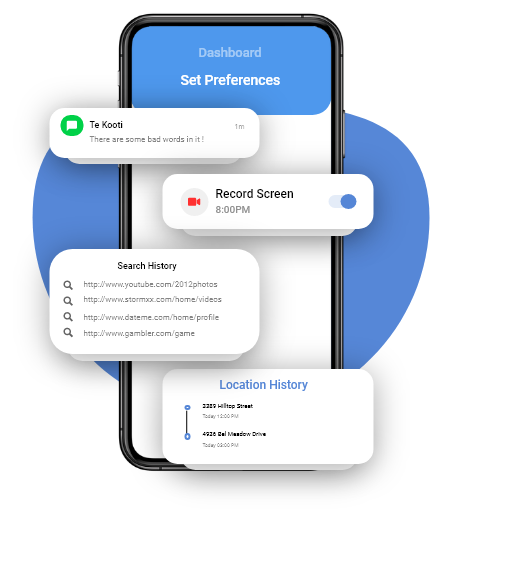
TheOneSpy understands that each one of you is different and has unique needs. You can tailor your software to your needs by modifying your dashboard’s data upload settings with your preferences. This will increase the application performance overall and data upload speed. It can also manage low internet speed while uploading large files to the secure control panel.
How Can a User Set Preferences?
The user can easily visit TheOneSpy application settings through login and can modify every single available data settings in the following.

Sync Setting let you prefer data uploading
In sync settings, the user is enabled to set his/her preferences, either user can restrict/start any individual or all features log or a user can initiate any individual or all features log.

App Setting allow you start or pause TheOneSpy App
The user has two options at the same time, either he/she can stop working application on the target device or he/she can start working application on the targeted device.

Set Location Tracking preferences via dashboard
The user can set preference within three-time intervals such as 5 minutes, 30min and 60mintues of location tracking feature of the TOS application. Within these intervals, the user can get the location logs information updated on its control panel.

Set a SIM Change Notification Setting
The user just needs to put his personal contact number within the application under the SIM Change Notification Number settings. If the target device changes the SIM Card then a hidden text message which contains the new sim number will automatically generate and sent to your given notify number.

Logs Synchronization with different internet connections
These settings allow the user to set the preference of TOS app works under the following conditions. The user can set the data-upload preference to work with WiFi internet connection, Mobile data connection, with both or, don’t sync option with anyone.
Restrict Incoming Calls on the target phone
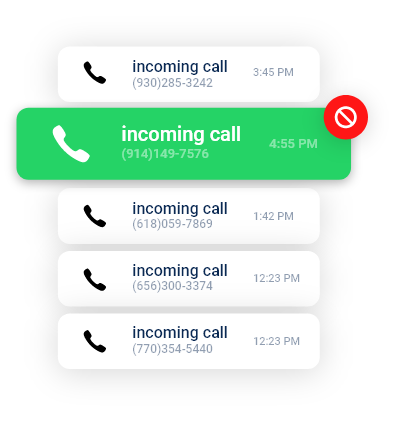
The user has the privilege to restrict inappropriate incoming calls on its targeted device. He/ She can put maximum 5 numbers on the blacklist, and then these 5 restricted numbers will not be able to make calls on your target device.
Block Internet While driving remotely
If a user wants to block all internet activities when its target is driving behind the wheels, he/she can block all the internet activities on the target device remotely.
Block SMS While Driving on target phone
The user has the power to block all sent or received SMS on its target device remotely when the target is driving behind the wheels.
Reboot Your Rooted Target Device Remotely via Dashboard
The user can also restart the targeted device along with the remotely, through its control panel.

Remotely reboot your target device.

Restart App on your cell phone remotely
In-case, TheOneSpy application is not working properly or it may crash by default, then the user can easily restart the application on the target device remotely.

Restart TheOneSpy monitoring app on your targeted devices remotely

Works with Rooted/ Jail-broken devices
Remotely Delete App on the target android device
The user has the power to delete the TOS application at any time from the target device remotely.

Delete TheOneSpy App from your target device remotely.
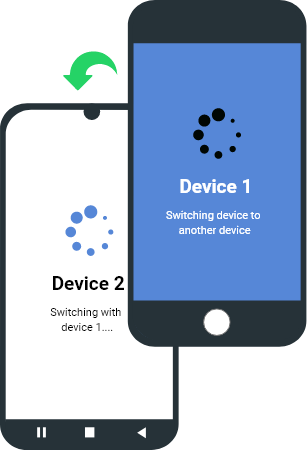
TheOneSpy allow Device Switch / Platform Switch
The user doesn’t have to contact the customer service representative if he/she wants to change the target device (Device Switch) for monitoring purpose; a user just has to install the TheOneSpy application on its new target device. If a user wants to switch platform or operating systems such as iOS and android then he/she has to contact TOS customer service representative to gets a new license in order to monitor the target device running with the different operating system.