Android’s parental controls are free, built in, and genuinely good — and most parents either never switch them on or set them up once and never touch them again. This guide covers what Google Family Link actually does, how to set it up properly, the settings that matter most at each age, and the limitation nobody warns you about: it substantially ends when your child turns 13.
Start With Family Link — It’s Free and It’s the Right First Move
Google Family Link is Google’s own parental control system for Android phones, tablets and Chromebooks. It’s the Android equivalent of Apple’s Screen Time. It costs nothing, it’s built into the account layer rather than bolted on, and for children under 13 nothing you can buy meaningfully beats it.
Anyone selling you a paid app before you’ve set this up is selling you something you may not need. Do this first.
What it actually does
- Daily screen time limits and Bedtime schedules
- School Time — limits distractions during school hours. Originally a smartwatch feature, it rolled out to Android 14+ phones and tablets in 2025
- App approval — every Google Play install needs your yes
- App blocking and per-app time limits
- Chrome and Google Search filtering
- YouTube Supervised Experience — content tiers for under-13s
- Approved Contacts — pre-approve who can call and text your child
- Play purchase locks — no surprise spending
- Location — see the device when it’s online
- Remote lock — lock the device from your phone
The parent app runs on Android or iPhone, so a mixed-device household still works.
Setting It Up: The Short Version
- Install Family Link on your phone (Play Store or App Store) and sign in with your own Google account.
- Create or link the child’s account. Under 13, create a supervised Google account. If they already have one, you can supervise it.
- Sign in on the child’s device with their account and complete the supervision prompts.
- Do it with your child in the room. This matters more than it sounds — see below.
- Set a realistic daily limit, not an aspirational one. A rule that gets broken on day two teaches your child the rules are theatre.
Two practical notes. Your own Google account is now the master key to your child’s — if yours is compromised, so is theirs, so it needs a strong password and two-factor authentication. And Family Link supervision is tied to the Google account, which means a second account signed into the same device can sidestep parts of it. Check for extra accounts under Settings.
The Settings That Actually Matter, By Age
Ages 8–11 — first device
- App approval on, for everything. This is the single highest-value control at this age — it’s how you keep a 13+ social app off a nine-year-old’s phone.
- Chrome filtering set to “Try to block mature sites,” SafeSearch on.
- YouTube Supervised Experience at the age-appropriate tier.
- Approved Contacts on.
- Bedtime schedule set — and no charging in the bedroom, which is a rule, not a setting.
Ages 12–13 — the transition window
- Keep app approval on, but expect negotiation. Start explaining the why behind each rule; you’re building judgement now, because the controls are about to disappear.
- Turn on School Time.
- Start the conversations you’ll need at 14. Name the specific risks — sextortion in particular, since offenders target this age group next.
Ages 14–17 — after the cliff
- Location sharing, if your teen agrees to it.
- The rules that survive are the ones you’ve talked about, not the ones you’ve enforced.
The Thing Nobody Tells You: Family Link Ends at 13
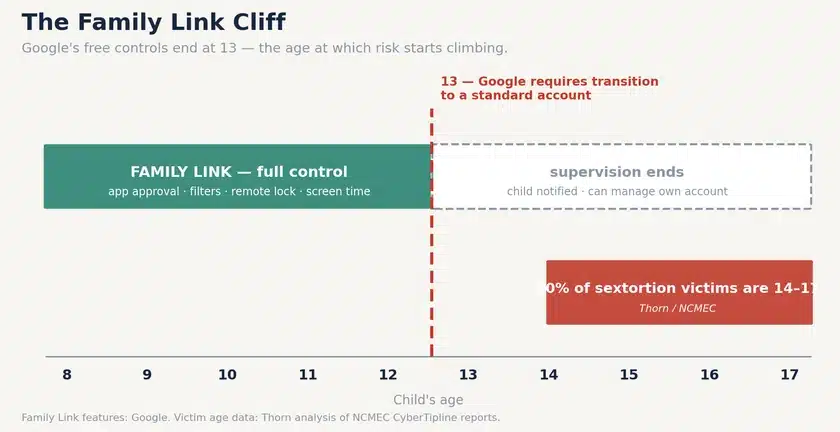
Figure 1 — Family Link’s coverage ends precisely where the risk curve starts climbing.
When your child reaches 13 — or the age of digital consent where you live — Google requires the account to transition to a standard one. Your child is notified that supervision is ending and offered the option to manage their own account. At that point you lose app approval, strict content filtering and remote lock.
This isn’t a bug or an oversight. It’s Google complying with COPPA and its own privacy commitments, and there’s a reasonable argument behind it. But it has a consequence most parents discover the hard way: Android’s free parental controls are a tool for younger children, not a long-term answer for teenagers.
And the timing is unfortunate. Thorn’s analysis of NCMEC report data found that 90% of financial sextortion victims are boys aged 14 to 17 — NCMEC logged more than 50,000 reports of it in 2025, an average of 137 a day. Family Link’s protection falls away in the year before that risk peaks.
The practical response isn’t panic — it’s planning. Have the conversations at 12 that you’ll be relying on at 15, because at 15 conversation is most of what you’ll have.
What Family Link Can’t Do
Worth knowing before you assume you’re covered:
- It doesn’t show message content. Family Link doesn’t report on your child’s texts. It manages apps and time, not conversations.
- Approved Contacts only covers Google Messages and the Google Phone app. It does nothing about WhatsApp, Snapchat, Instagram or Discord — which is where your child actually talks.
- It’s Android and ChromeOS. An iPhone in the house needs Apple Screen Time instead.
- A determined teenager can work around parts of it — a second account, a friend’s device, a school Chromebook. Every technical control is a speed bump, not a wall.
- It doesn’t detect harm. It won’t tell you a stranger has started messaging your child, or that the tone of their chats has changed.
The Rest of the Android Stack
Family Link is one layer. Two more are free and take ten minutes:
- Play Store parental controls — on the child’s device, Play Store → Settings → Family → Parental controls. Sets content ratings for apps, games and films independently of Family Link.
- Per-app settings — YouTube Restricted Mode, private accounts on social apps, Snapchat’s Family Center, TikTok Family Pairing. These are where the real risk lives, and none of them are Google’s to manage.
Where a Monitoring App Fits
Straight answer: for most families with children under 13, it doesn’t. Family Link plus the platform settings above will cover you, and we’d rather say so than sell you something you don’t need.
The case changes after 13 — when Family Link’s supervision ends and the risks it never covered (unknown contacts, messaging apps, the sextortion pattern above) become the ones that matter. That’s the gap TheOneSpy is built for: app and screen-time visibility that doesn’t expire at a birthday, plus alerts for unknown contacts and risk keywords, across Android, iPhone/iPad, Windows and Mac in one dashboard.
Two conditions, as everywhere on this site: your child knows it’s there, and it scales back as they grow. A tool your teenager knows about supports the conversations that actually keep them safe. A secret one, once discovered — and it is almost always discovered — costs you the thing that matters most in a crisis: being the person your child tells first.
Frequently Asked Questions
How do I set up parental controls on Android?
Install Google Family Link on your phone, sign in with your Google account, and create or link a supervised account for your child. Then sign in with that account on their device and complete the supervision prompts. It’s free, it takes about ten minutes, and it covers screen time, app approval, content filtering, location and remote lock.
Is Google Family Link free?
Yes — completely. It’s Google’s built-in parental control system for Android phones, tablets and Chromebooks, and the parent app works on Android or iPhone. For children under 13 it’s the strongest free option available, and worth setting up before you consider paying for anything.
What happens to Family Link when my child turns 13?
Supervision substantially ends. Google requires the account to transition to a standard one at 13 (or your country’s age of digital consent), your child is notified, and they can choose to manage their own account. You lose app approval, strict content filtering and remote lock. Location sharing can continue if your teen agrees. Plan for this before it happens.
Can Family Link read my child’s text messages?
No. Family Link manages apps, screen time and content ratings — it doesn’t report message content. Its Approved Contacts feature covers only Google Messages and the Google Phone app, so it doesn’t affect WhatsApp, Snapchat, Instagram or Discord.
Can my child bypass Android parental controls?
Parts of them, yes — a second Google account on the same device, a friend’s phone, or a school Chromebook all sidestep some controls. Technical controls slow problems down; they don’t eliminate them. That’s why the conversations matter more as your child gets older, and why they matter most before 13, while you still have both.
Sources
- Google Family Link — official feature documentation
- Google — Family Link supervision updates: School Time on Android phones and tablets, Approved Contacts (2025)
- Thorn — Trends in Financial Sextortion (90% of victims male, aged 14–17)
- National Center for Missing & Exploited Children — CyberTipline data (2025): 50,000+ financial sextortion reports, 137/day
- American Academy of Pediatrics / HealthyChildren.org — digital-age parenting guidance