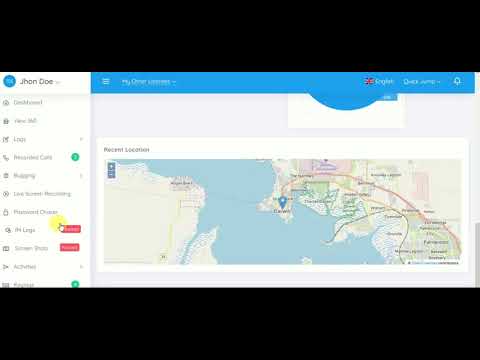
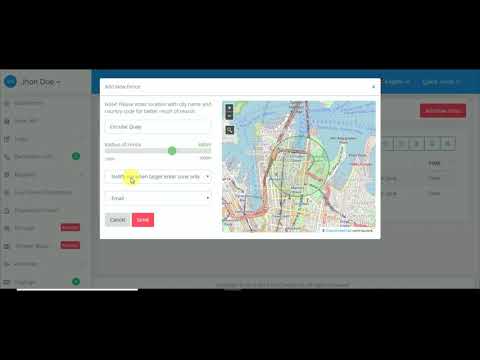
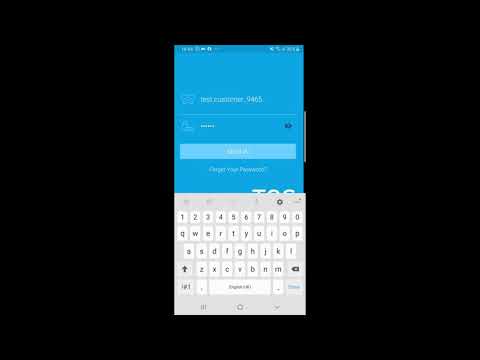
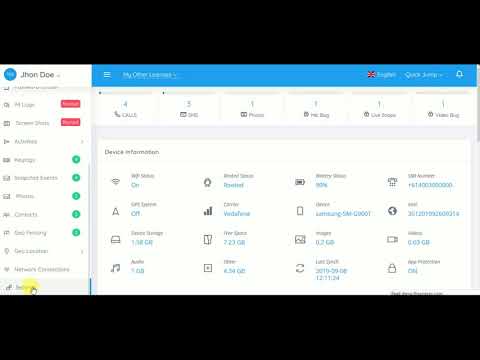
Step-by-step video walkthroughs for every supported platform — Android, iOS, Windows, and Mac. 26 tutorials covering installation, uninstall, and all key features.
26Tutorial videos
4Platforms covered
a few minAvg. setup time
Before You Begin
What You Will Need
🔑
Active Account
Sign in to dash.theonespy.com and confirm your subscription is active before starting.
📱
Device Access
Android/desktop: brief physical access required. iOS: iCloud credentials used instead — no device contact needed.
🔒
Device Passcode
Have the device PIN or passcode ready to unlock and grant the required permissions during setup.
📶
Internet Connection
Both the setup device and your own device need an active internet connection throughout the process.
Android Setup
Install on Android Devices
Full feature coverage including calls, app usage, location history, SMS, and social media — all visible in your dashboard from the moment setup completes.
Full feature set
Android 5.0+
a few min setup
Requirements
✓ Android 5.0 or later
✓ Physical access to the device
✓ Device passcode or PIN
✓ Active subscription
✓ Internet connection on device
Step-by-Step
How Installation Works
1
Log In to Dashboard
Sign in to dash.theonespy.com and copy your unique setup link or activation code.
2
Enable Unknown Sources
Settings → Security → enable "Install from Unknown Sources" for your browser.
3
Download and Install
Open the device browser, paste your setup link, download the APK, and tap Install.
4
Grant Permissions
Follow on-screen prompts to grant location, contacts, and accessibility permissions.
5
Link Your Account
Enter your dashboard email. Data begins appearing in your dashboard within minutes.
Installation Guide
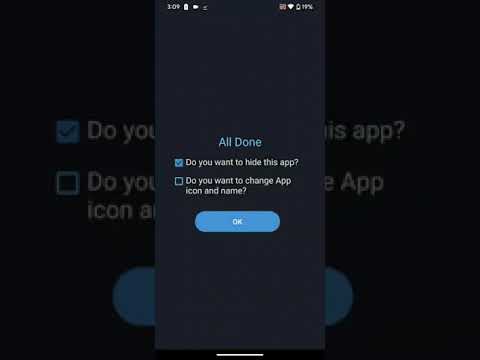
TheOneSpy App Installation Guide for Android
Uninstall Guide
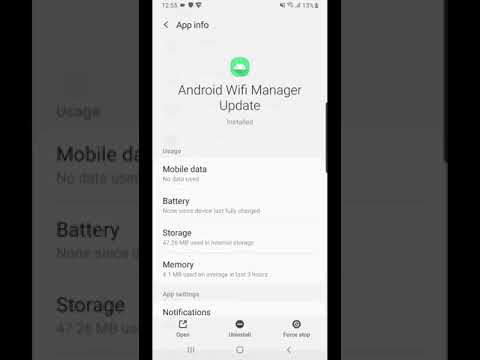
TheOneSpy App Uninstall Guide for Android
Pro Tips
Android Setup Tips
⚡Samsung devices
Unknown Sources is under Settings → Biometrics & Security → Install Unknown Apps. Enable it for your browser specifically.
🔋Disable battery optimisation
Settings → Battery → App Optimisation → exclude the app to keep reporting consistent and uninterrupted.
📡First sync takes a few minutes
After setup, give the device a few minutes on Wi-Fi. Historical data appears on the dashboard once the first sync completes.
Troubleshooting
Common Android Questions
Go to Settings → Apps → [your browser] → Install Unknown Apps and allow it. Samsung and Xiaomi devices have an additional Security menu with this setting.
Check the device has an active data or Wi-Fi connection. Open the app and confirm it shows your account email. Data should appear within 2–3 minutes of reconnecting.
On Android 13+, go to Settings → Accessibility → Installed Apps. The path varies by manufacturer but the app will appear in the Accessibility section.
iOS Setup
Review Activity on iOS Devices
iOS support works via iCloud backup data — no direct device installation required. Access iCloud-synced contacts, call history, photos, and messages where available.
Limited features (iCloud only)
No device access needed
~3 min setup
Requirements
✓ iOS device with iCloud enabled
✓ Apple ID and password
✓ iCloud backup turned on
✓ Active subscription
⚠ Two-Factor Auth code (if enabled)
ℹ️
Limited Feature Set: iOS does not permit direct installation of monitoring software outside the App Store. TheOneSpy accesses iCloud-synced data only. For full feature access, use Android, Windows, or Mac.
Step-by-Step
iCloud Setup Process
1
Enable iCloud Backup
Settings → [your name] → iCloud → iCloud Backup → toggle on → "Back Up Now".
2
Log In to Dashboard
Go to your TheOneSpy dashboard, select your iOS subscription, and click "Set Up Now".
3
Enter Apple ID
Enter the Apple ID email and password for the iCloud account linked to the device.
4
Verify 2FA Code
If two-factor auth is enabled, enter the 6-digit code from a trusted Apple device.
5
Review Dashboard Data
iCloud data loads into your dashboard. Timing depends on iCloud backup frequency.
Installation Guide
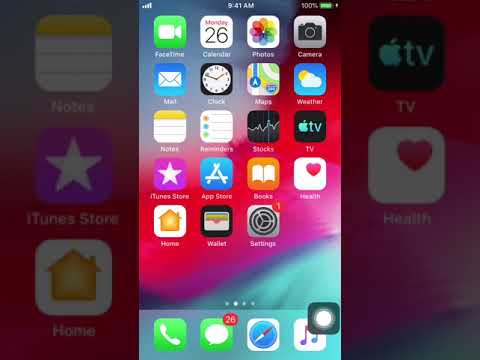
Install TheOneSpy App on Any iPhone
Uninstall Guide
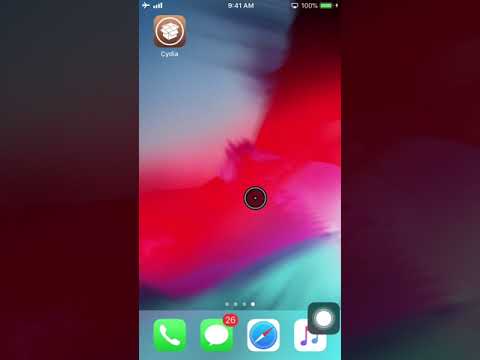
Un-installation Guide for iPhone
Troubleshooting
Common iOS Questions
Confirm iCloud Backup is turned on and a recent backup has completed. Check Settings → [your name] → iCloud → iCloud Backup → "Last Backup" timestamp. Trigger a manual backup and wait 5–10 minutes.
The 6-digit code appears on any device signed into the same Apple ID. Enter it quickly — it expires in 30 seconds.
iCloud only backs up categories enabled in Settings → [your name] → iCloud. Messages, Contacts, and Photos must each be toggled on. Allow up to 24 hours after enabling.
Windows Setup
Install on Windows Computers
Records keystrokes, screenshots, website history, and app usage from any Windows PC or laptop — running quietly in the background with minimal performance impact.
Full desktop feature set
Windows 7 and above
~10 min setup
Requirements
✓ Windows 7, 8, 10, or 11
✓ Admin access to the computer
✓ 50 MB free disk space
✓ Active subscription
✓ Internet connection
Step-by-Step
Windows Installation Process
1
Download Installer
Log in to your dashboard, go to your Windows subscription, and download the setup .exe file.
2
Disable Antivirus
Temporarily pause Windows Defender or antivirus during install. Re-enable immediately after.
3
Run as Administrator
Right-click the .exe → "Run as administrator". Accept the UAC prompt when asked.
4
Enter Account Key
Paste the unique activation key from your dashboard. This links the install to your account.
5
Complete & Restart
Follow remaining prompts and restart. Data begins appearing in your dashboard within minutes.
Installation Guide
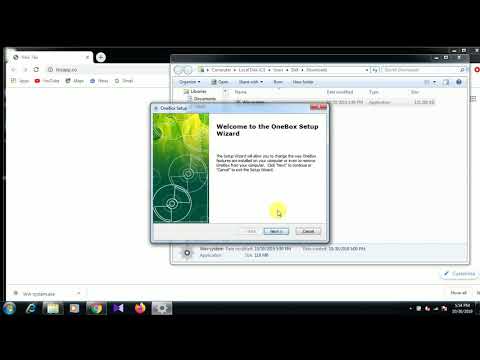
Install TheOneSpy App on Windows Device
Uninstall Guide
Uninstall TheOneSpy App on Windows
Pro Tips
Windows Setup Tips
🛡️Defender exceptions
Add the app to exclusions: Windows Security → Virus & threat protection → Exclusions → Add folder.
👤Multiple Windows accounts
The app records the user account it was installed under. Install while logged into the account you want to review.
📸Screenshot frequency
Adjust screenshot frequency from your dashboard at any time. Start with every 5 minutes and increase as needed.
Troubleshooting
Common Windows Questions
Disable real-time protection before downloading: Windows Security → Virus & threat protection → Manage settings → toggle off. Download and install, then re-enable. Add the app folder to Exclusions.
Click "More info" on the SmartScreen warning, then "Run anyway". This appears for software that hasn't built up a large download count — it is not an indicator of a problem with the file.
Restart the computer fully after installation. Ensure the device has an active internet connection and wait a few minutes. First sync of historical items may take a little longer.
Mac Setup
Install on Mac Computers
Captures keystrokes, browsing activity, app usage, and screen captures from macOS. Full support for Apple Silicon (M1/M2/M3) and all Intel Macs.
Full desktop feature set
macOS 10.12 Sierra+
~10 min setup
Requirements
✓ macOS 10.12 Sierra or later
✓ Admin account on the Mac
✓ 80 MB free disk space
✓ Active subscription
✓ Internet connection
Step-by-Step
Mac Installation Process
1
Download the DMG
From your dashboard, download the Mac installer (.dmg). Save it to the Desktop for easy access.
2
Open and Install
Double-click the .dmg, drag the app to Applications. macOS may ask for your admin password.
3
Allow in Security
System Settings → Privacy & Security → click "Open Anyway" next to the app name.
4
Grant Permissions
Approve Screen Recording, Accessibility, and Full Disk Access when prompted. Each unlocks related features.
5
Enter Account Key
Enter the unique key from your dashboard. Data sync begins immediately.
Installation Guide
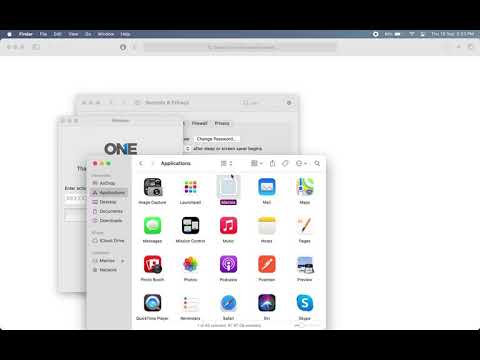
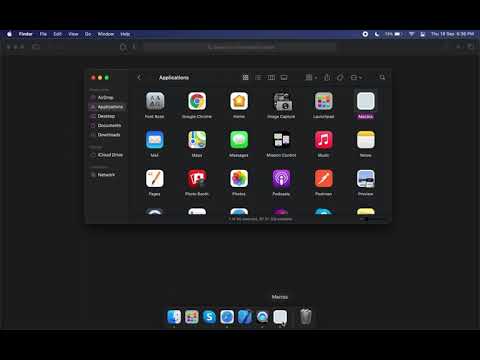
App Installation Guide for Mac
Uninstall Guide
Un-installation Guide for Mac
Pro Tips
Mac Setup Tips
🔐Full Disk Access matters most
Without Full Disk Access many file-activity features are limited. Grant it in System Settings → Privacy & Security → Full Disk Access.
🍎Apple Silicon (M1/M2/M3)
The app runs natively on Apple Silicon. If macOS asks about Rosetta, click "Open" without Rosetta for best performance.
🔄After a macOS update
Major macOS updates can reset app permissions. If data stops syncing, revisit Privacy & Security and re-grant permissions.
Troubleshooting
Common Mac Questions
Run in Terminal: xattr -cr /Applications/TheOneSpy.app. This clears macOS quarantine flags. Then open from Applications folder.
This happens when the app is not in the Applications folder (e.g., run directly from DMG). Move it to Applications first, then open from there.
The app must be installed under each macOS user account separately. Log into the other account and repeat the installation steps with the same account key.
How TheOneSpy Works
Feature Video Guides
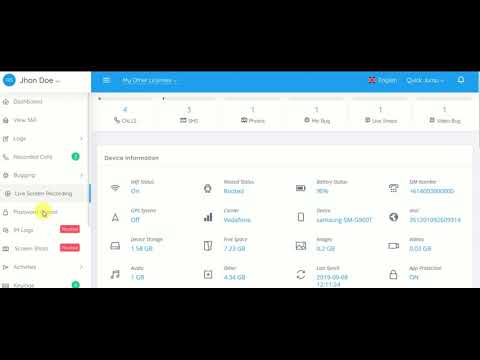
18 how-to videos covering remote controls, location tracking, social media, dashboard management, and more. Click any card to play.
🎮 Remote Controls & App Management
Web Control
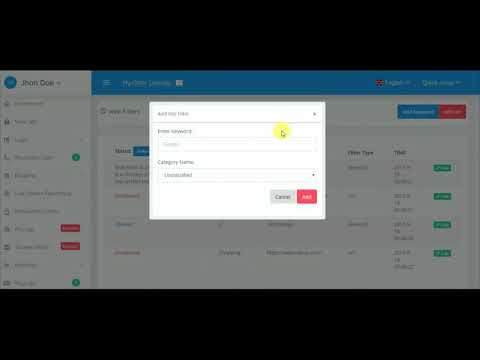
Block Websites by Keyword or URL with TheOneSpy
Remote Commands
How to Send Commands with TheOneSpy APP Remotely
Remote Control
How to Control an Android Phone Remotely with Software
App Management
How to Block and Unblock Apps with TOS App
Call Control
How to Block Unwanted Calls with TheOneSpy App
App Removal
How to Uninstall an Application from the Phone with TOS App
Deactivation
Remotely Reset and Deactivate the App in the Phone
Remote Removal
Remotely Delete TOS App from the Phone
📍 Location & Geofencing
GPS History
How to Get GPS History of a Cell Phone with TOS App
Geofencing
How to Mark Safe and Restricted Areas with TheOneSpy
📊 Dashboard, Logs & Data
TOS Desk
How to Check Logs from Your Phone with TOS Desk
Sync Settings
How to Set Your Logs Sync Settings with TheOneSpy
Data Backup
How to Take Data Backup with TheOneSpy
💬 Social Media & App Tracking
WeChat
WeChat Screen Recording with TheOneSpy
Snapchat
How to Get Snapchat Logs Without Root
Snapchat
How to Track Snapchat Events with TheOneSpy App
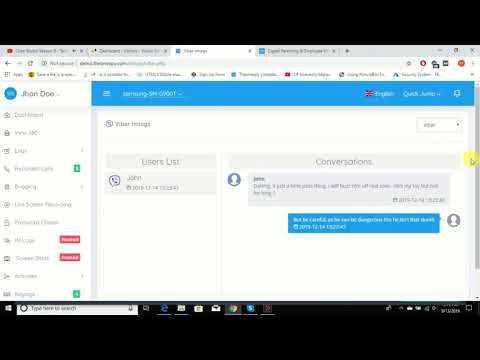
Viber
How to Track Viber App with TheOneSpy App
Telegram
How to Track Telegram Voice Messages with TOS App
FAQ
Frequently Asked Questions
Yes, for Android and desktop platforms brief physical access is required during setup. For iOS, iCloud credentials are used instead — no device contact needed.
TheOneSpy runs efficiently in the background with minimal impact on performance or battery. Usage is typically not noticeable on most devices during normal operation.
Yes. Open the tutorial video on a second device while you work on the setup device. All videos are hosted on YouTube and work on any browser or the YouTube app.
The app stores data locally when offline and uploads it to your dashboard as soon as the device reconnects to the internet. No data is lost during offline periods.
Each subscription covers one device. For multiple devices, purchase a separate subscription for each. Contact support for multi-device pricing.
Use the remote uninstall option in your dashboard subscription settings, or watch the uninstall video for your platform in the tabs above. Standard system uninstall also works on Windows and Mac.
Ready to Get Started?
Plans from $18/mo with instant account access. Set up in minutes and view your first dashboard data today.