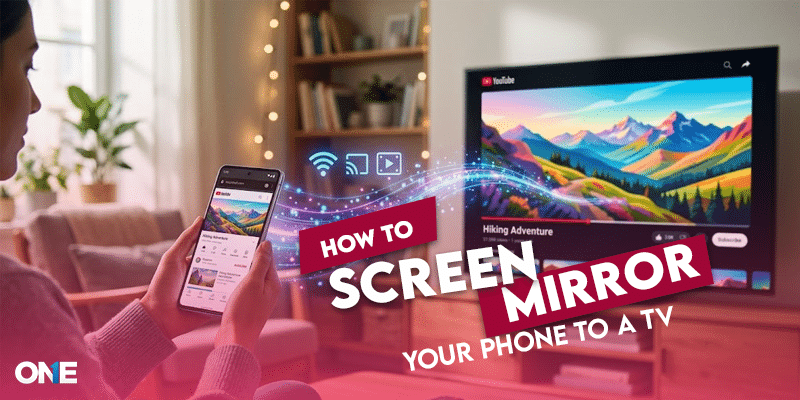
Screen mirroring lets you show whatever is on your phone, tablet or laptop on a bigger screen — a TV or monitor — in real time. It’s how you get holiday photos onto the living-room TV, put a presentation on a conference display, or watch a phone video without everyone crowding around a small screen. This guide covers every method that works in 2026, organised by what you’re connecting to, plus the fixes for when a device won’t show up.
The right method depends on two things: what you’re mirroring from (iPhone, iPad, Android, Mac or Windows) and what you’re mirroring to (a smart TV, a streaming stick, or a plain monitor). Wireless is easiest when both devices support the same standard; a wired HDMI connection is the fallback that always works.
How Screen Mirroring Works
Almost all wireless mirroring relies on one of three standards, and knowing which your devices speak saves a lot of trouble:
- AirPlay 2 — Apple’s standard, used by iPhone, iPad and Mac. Built into most Samsung, LG, Sony, Vizio and Roku TVs made from around 2020 onward, and into Apple TV.
- Google Cast (Chromecast built-in) — Google’s standard, used by Android and the Chrome browser. Built into Google TV / Android TV devices, Chromecast dongles, and many newer smart TVs.
- Miracast — an open standard used by many Android phones and Windows PCs, and by Roku and some smart TVs. Notably, Apple devices do not support Miracast.
The single most common requirement across all wireless methods: both devices must be on the same Wi-Fi network. Most “it won’t connect” problems come down to this one thing.
Mirror an iPhone or iPad (AirPlay)
If your TV supports AirPlay 2 — most smart TVs from 2020 on, plus Apple TV — this is built in and takes seconds:
- Connect your iPhone/iPad and the TV to the same Wi-Fi network.
- On the TV, make sure AirPlay is enabled (usually under Settings → AirPlay and HomeKit).
- On the iPhone/iPad, open Control Center (swipe down from the top-right corner) and tap Screen Mirroring.
- Select your TV from the list.
- If a code appears on the TV, enter it on your device.
If your TV doesn’t support AirPlay, the reliable alternative is an Apple TV box, or a wired connection using a Lightning- or USB-C-to-HDMI adapter.
Mirror an Android Phone (Cast / Smart View)
Android’s built-in mirroring lives in Quick Settings, though the name varies by brand — “Screen cast,” “Smart View” (Samsung), “Cast,” or “Wireless projection.”
- Connect the phone and TV to the same Wi-Fi.
- On the TV or streaming device, make sure screen mirroring/casting is enabled.
- On the phone, open Quick Settings (swipe down from the top) and tap Screen cast or Smart View.
- Select your TV from the list and accept any prompt that appears on the TV.
Samsung phones to Samsung TVs have an extra shortcut called Tap View — with the feature enabled in the SmartThings app, you physically tap the phone to the TV to start mirroring. And many apps (YouTube, Netflix, Spotify) have a Cast icon that sends just that app’s content to the TV rather than mirroring the whole screen — often the smoother option for video.
Mirror to Specific Devices
To a Chromecast / Google TV
Android phones cast natively — tap Screen cast in Quick Settings and pick the device. From an iPhone, most Chromecast devices don’t accept AirPlay directly, so use the Google Home app, or cast supported apps with their built-in Cast icon. The Chrome browser can also cast a tab or the whole desktop from a computer.
To a Roku
On the Roku, set Settings → System → Screen mirroring to “Prompt” or “Always allow.” Roku uses Miracast, so most Android and Windows devices can mirror to it; newer Roku models also support AirPlay for Apple devices and Chromecast for app casting.
To a Samsung TV from a non-Samsung phone
Newer Samsung TVs include Chromecast built-in, so many Android phones can cast from Quick Settings. Alternatively, the SmartThings app provides a screen-mirroring feature that works across brands.
The Wired Method (Always Works)
When wireless is unreliable — or the devices simply don’t share a standard — a cable is the most stable option, with no lag, which makes it the best choice for gaming or anything latency-sensitive:
- iPhone/iPad: a Lightning- or USB-C-to-HDMI adapter into any HDMI port.
- Android: a USB-C-to-HDMI adapter or cable (the phone must support video output over USB-C — most recent flagships do).
- Laptop: a direct HDMI or USB-C cable.
HDMI works regardless of what mirroring standards the TV supports, because it’s a direct video connection rather than a network one.
When It Won’t Connect: Quick Fixes
Most mirroring failures come down to a short list of causes:
- Different Wi-Fi networks. The most common issue — confirm both devices are on the exact same network (watch for separate 2.4GHz and 5GHz bands, or a “guest” network).
- Mirroring not enabled on the TV. Some TVs need screen mirroring switched on manually before they appear in the list.
- Wrong protocol. An iPhone won’t mirror to a Miracast-only TV, and an AirPlay-only setup won’t take an Android cast. Match the standard, or use HDMI.
- Devices need a restart. Restarting both the phone and the TV clears a surprising number of connection glitches.
- Outdated software. Update the phone’s OS and the TV’s firmware if the option won’t appear at all.
Screen Mirroring vs Casting: What’s the Difference?
They’re often confused. Screen mirroring shows an exact copy of your whole screen on the TV — everything you do on the phone appears on the big screen, including notifications. Casting (the Cast icon in apps like YouTube) sends only that app’s content, then hands playback to the TV so your phone is free to do other things. For watching video, casting is usually smoother; for showing photos, a presentation, or an app that doesn’t support casting, mirroring is the way.
Frequently Asked Questions
How do I screen mirror my phone to my TV?
Connect both devices to the same Wi-Fi. On an iPhone, open Control Center and tap Screen Mirroring, then choose your TV (this needs an AirPlay-compatible TV). On Android, open Quick Settings and tap Screen cast or Smart View, then choose your TV. If your TV doesn’t support your phone’s wireless standard, an HDMI adapter and cable will always work.
Why won’t my TV show up when I try to mirror?
Almost always because the two devices are on different Wi-Fi networks — check they’re on the exact same one, including the same band or non-guest network. Also make sure screen mirroring is enabled on the TV, that your phone’s standard matches the TV’s (iPhone needs AirPlay; Android often uses Cast or Miracast), and try restarting both devices if it still won’t appear.
Can I screen mirror an iPhone to any TV?
Only to TVs that support AirPlay 2 — most smart TVs from about 2020 onward, plus Apple TV. iPhones don’t support Miracast, so for an older or incompatible TV you’ll need an Apple TV box, a Chromecast used via the Google Home app or app-based casting, or a wired Lightning/USB-C-to-HDMI adapter.
What’s the difference between screen mirroring and casting?
Screen mirroring copies your entire screen to the TV in real time, so everything you do on the phone shows up. Casting sends only a specific app’s content (via the Cast icon) and lets the TV handle playback while your phone is free. Casting is smoother for video; mirroring is better for photos, presentations, or apps without a cast option.
Do I need Wi-Fi to screen mirror?
For wireless mirroring, yes — both devices generally need to be on the same Wi-Fi network. The exception is a wired HDMI connection, which needs no network at all and is the most reliable method, especially for gaming or anything where lag matters.