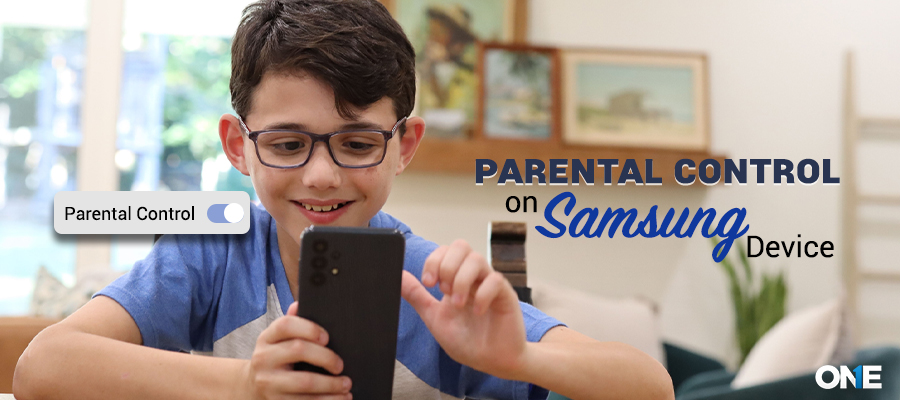
Access to the internet on cell phone devices has turned the entire world into a global village. On the other hand, the rain of Samsung cell phones, tablets, and pads has sent the clear message to the public that the importance of Samsung parental controls on Android devices has never been more urgent. The craze of Samsung phones among the youth is at its peak, and they have turned the number of minors and teenagers into cyber-victims.
Apart from the victimization of the kids and teens in the digital world, they themselves are living an adventurous life and have adopted such foolish methods of using cell phones that have made them no less than stuntmen. Let’s have a look at the reasons to set up Samsung parental control on kids’ phones.
How to Set up Samsung Parental Controls
To set up parental controls on Samsung devices, open Settings and Parental Controls. Choose Parental Controls, sign in with your Google account, and create or link your child’s account.
Parents who need more advanced monitoring features can use TheOneSpy, which offers deeper insights into phone usage, helping ensure children’s digital safety and responsible device use.
Using Google’s Family Link, you can set screen time limits, approve or block apps, filter web content, and monitor overall device activity. For a built-in, kid-friendly experience, Samsung Kids lets you create a safe space with restricted access and age-appropriate apps and content.
No matter how advanced the device is, the latest Samsung is not a headache for you to set up parental control on it. You can use the developed technology parental controls on Samsung devices and put your worries to rest.
Use TheOneSpy Parental Control
TheOneSpy is the best parental control app that allows parents to monitor their children’s digital activities to protect them from dangerous intentions. It offers location tracking, social media monitoring, internet history, screen recording, call logs, see text messages, and many other features. TheOneSpy can record Samsung phone calls, app usage, screen timings, etc.
Follow the step-by-step guidelines to enable Samsung parental control with TheOneSpy.
Step 1:
- Go to TheOneSpy’s official website.
- Choose your subscription plan
- You will get an email for the app installation link & login details
Step 2:
After creating the TheOneSpy account, install the Samsung parental control on your kid’s phone
For Android Device installation:
- Log in to your account
- Get access to Android devices
- Install APK files
- Grant permission for particular actions
Step 3:
After complete installation, open TheOneSpy Dashboard (which can be accessed on the web or mobile)
- Monitor App usage (block & restrict unwanted apps)
- Schedule screen time (avoid the child from consuming more time on screen)
- Record phone calls & VoIP Call recording
- Monitor social media calls & messages (WhatsApp, Facebook, Instagram, Telegram, Snapchat, etc.)
- Geofencing Alert (track the target person’s real-time GPS locations)
- Safe browsing (block Apps/websites that provide harmful content)
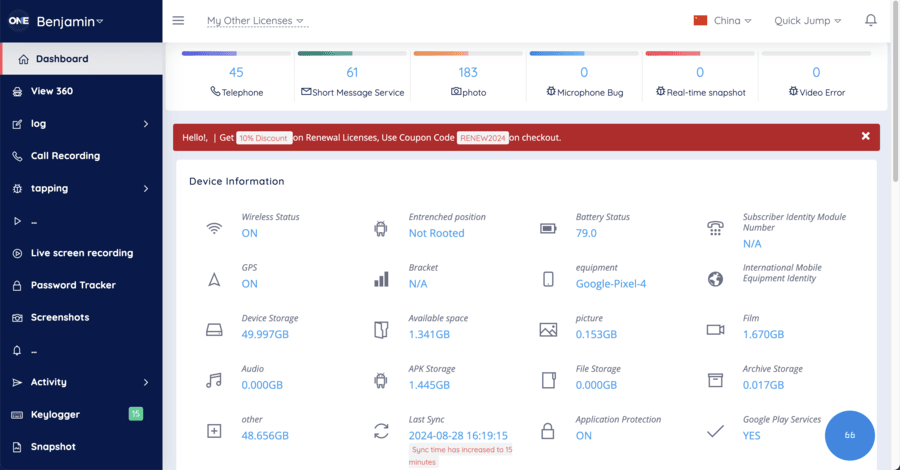
If you want to prevent your child from using their device before bed or during studying time. You can use your own dashboard to lock the device remotely. To add a security layer, turn off WI-FI or mobile data to prevent your kid from spending more time on screens. TheOneSpy provides regular activity reports. It will access data from the device and track app activity, text messages, social media, and GPS locations.
The reports can adjust screen time limits, app restrictions, or content filters. TheOneSpy offers advanced features to keep children safe on the internet. Once you install TheOneSpy software and set up an array of parental control settings, view app usage, browsing history, social media activity, and even their location.
TheOneSpy Parental Control Features
Furthermore, the following tools that you need to use to apply parental control to your target Samsung device.
Control Social Media Apps
You can set up TheOneSpy parental control on your target device and can view all the activities of kids and teens that they perform on social media apps. A user can view chat logs, text messages, shared media files, and listen to voice messages. You can come to know to whom target user is texting, chatting, and calling to prevent them from online bullying, stalkers, and others.
Call Recording
You can record Messenger calls (WhatsApp, Facebook, Telegram, etc)of teens in Samsung smartphones with TheOneSpy hidden call recorder app. However, save the recorded stuff into an online dashboard. You can come to know who your child is talking to at the moment in real time.
See Text Messages
View sent and received text messages and heads-up ticker notifications with TheOneSpy SMS tracker feature. What else do you need to know about your target Samsung phone? You can read all plans of your teens, such as blind dating, conversations with strangers, and their upcoming dangerous activities.
TheOneSpy View 360 Live Streaming
Listen and record surrounding sounds and conversations, and come to know the hidden activities of teens that they have planned before and are going to execute with the stalker, child abusers, and other that can harm your teens.
All you need to do is use Spy 360 live surround listening, and you can stop teens from getting involved in self-obscenity, to view the excessive use of the phone by using the Spy 360 live screen sharing. It enables a user to hack the screen of the phone and then broadcast it live into the online control panel.
However, they can hack the camera of the phone and get live visuals of the surroundings with the help of spy 360 live camera streaming. It means you can come to know where kids and teens and the moment are and what exactly they are doing.
Control Samsung Remotely
The user can remotely control the Samsung device with the help of remotely phone controller feature of TheOneSpy. You can stop young teens from using their cell phones while driving, you can remotely block all incoming calls, a user can block text messages, and even block the internet fully.
Google’s Family Link for Setting Up Samsung Parental Control
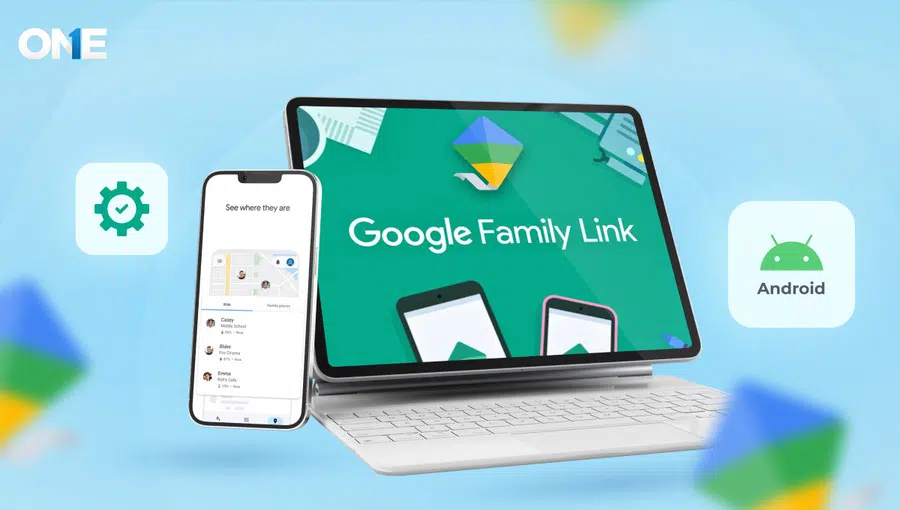
Setting Parental control on Samsung with the Google Family Link lets parents monitor their child’s activity. Google Family allows you to supervise your kids’ data to monitor things that could be harmful. Google Family covers crucial features, including:
- Screen time monitoring
- App download approval
- Securing their account by content filtering
- Track their locations
- Automate locking
But first, let’s set up the Samsung device with Google Family Link. Your family members should have Google accounts and automatically create the family group for linking accounts. We provide a step-by-step guide for linking Google Family to your Android device.
Step 1:
Unlock the Samsung Phone and visit the Play Store. The first step is to install the Google Family App through the Play Store. The app is free of cost and can be installed within seconds.
Step 2:
After installation, open the app. Sign in with your Google Account. Follow the main instructions and link your child’s account with your own Google Account.
Step 3:
Create a kid’s personal Google account if they don’t have an account. Build one with the Family Link app. After creating an account, link with Google’s Family Link by enabling the add child option.
Step 4:
Open the kid’s device to establish the parental control feature. Open the app, login with the child’s account, and follow the guides to link with the Family Link app.
Step 5:
Read about parental control layouts. After linking devices, you will see a detailed page regarding child supervision and what you can do with it. Read the entire page till the last.
Once you read all the instructions, in the end, they asked which device to connect to and enter the child’s account password.
Enter a strong password after submitting, and they will provide permission to connect to parental control. Press the Allow button to continue.
Step 6:
Wait until both accounts are linked. It would take a few minutes. After the linking page appears, tell accounts are linked. Now, tap Next.
Step 7:
Configure Google’s Family Link after successfully linking devices. It may contain some features like:
- Control screen timing
- Managing and reviewing the App
- Track GPS locations
- Enable Safe Search from Google
- Restrict Apps
Step 8:
Family Link provides a detailed report regarding your kid’s mobile activity. You can check it anytime.
Step 9:
You can automatically lock or unlock their mobile phones to give them a break from the screen.
Step 10:
Anytime you can modify settings with the Google Family Link App, adjust screen limit, or block/unblock Apps.
Use Samsung Kids to Set up Parental Control
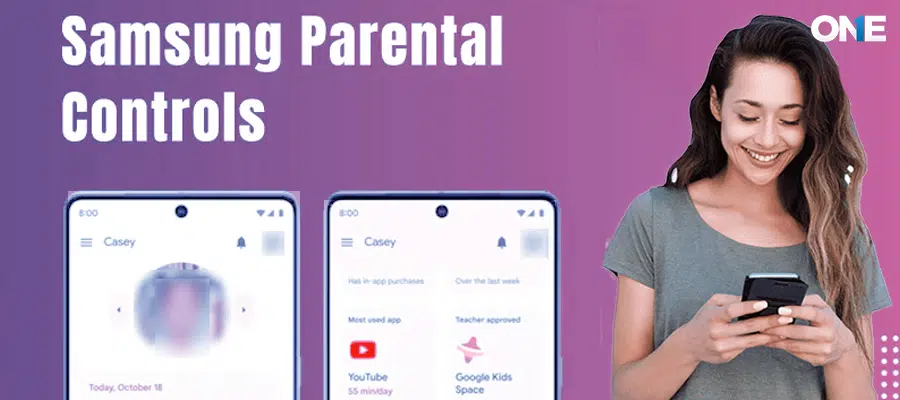
A user can set parental control on the latest Samsung device by using the Samsung device’s default settings. You just need to follow a few steps to set up parental control on the latest Samsung devices, which enable you to visit the settings to set parental control by default.
Step1:
Unlock the Samsung phone and open Settings. You can quickly find it by swiping down the notification panel and tapping the gear icon.
Step 2:
Scroll down and tap Digital Wellbeing & Parental Controls, then select Samsung Kids. If it’s your first time, tap Get started to begin the setup.
Step 3:
Create a Samsung Kids PIN, pattern, or password. This ensures only parents can exit Samsung Kids or change its settings.
Step 4:
Once Samsung Kids is activated, you’ll enter a kid-friendly interface. Tap Parental controls to manage settings such as screen time limits, app access, and content restrictions.
Step 5:
Choose which apps, games, and contacts your child can access. You can block inappropriate content and allow only age-appropriate apps for a safer experience.
Step 6:
Exit the settings and return to the home screen. Samsung Kids is now active, giving your child a secure environment while you stay in control of their digital activity.
Why is it Necessary to set up Samsung Parental Control?
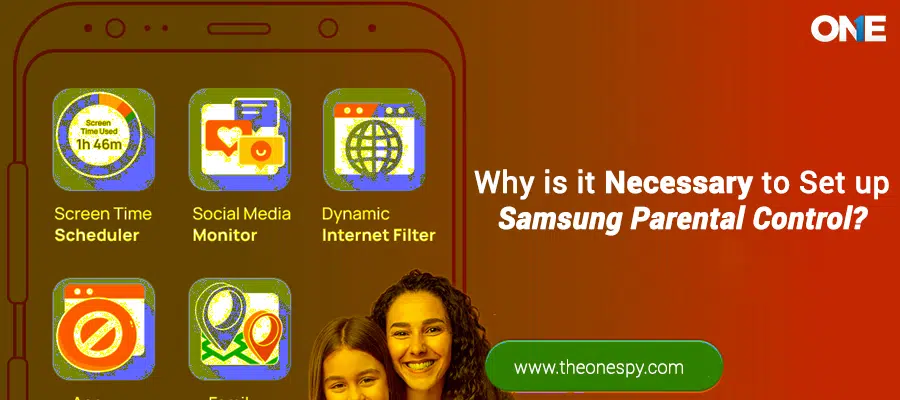
According to the Study of Exploring the online privacy of Social Networking & Cyberbullying, 40% of teens become the victims of online bullies, and 28% of young boys are bullied online.
Cyberbullying is the evil that has turned the digital world into a nightmare against young kids and teens. The one who knows about these elements may use some precautions, but those young minors who have recently joined the social media platforms are probably the easiest targets for the online bullies.
Stalkers operate in such a way that none of the teens will be able to judge that; in the end, she would become the sexual victim. They behave in such a generous way that teens are trapped by their friendly gestures and then ready to believe what they are going to say. Cyberstalkers usually become online friends of the teens and finally meet them in real life for the sake of their dark sexual motives.
Blind Dating through Dating Apps
The rise and rise of one-night stands, especially on occasions such as Valentine’s Day, parties, bars, teens, loved to do things to mingle with the opposite gender. They use dating apps such as Tinder, Snapchat, Instagram, Facebook, and others to find someone they can meet in real life for a blind date.
Child Abusers Use Social Apps
The child abusers also use the instant messaging apps to find out a soft target in the shape of young kids. They visit the social media profiles lacking privacy settings and view the complete information, and then chase out kids near their homes or at their schools.
In the United States, it has one of the most threatening records of losing on average, between four and seven children every single day to child abuse and neglect. So, child abusers use social media apps as their cover to operate as child abusers and find out their target with the help of digital media platforms.
Excessive Use of Cell Phones Causes Health Problems
Obviously, continuously gazing at the cell phone screen of Samsung and doing plenty of activities all day long causes health issues among teens and minors. They may cause depression, anxiety, eye side issues, psychological disorders, weight gain due to less physical activity, and plenty of others, such as obesity.
Texting turns into Sexting
A habit of sending and receiving text messages to online friends often turned into sexting that arouses sexual feelings in teens and tweens. Finally, they continue this bad habit and become the victim of sexual abusers or stalkers.
Rising Habits of Self-obscurity
The young teens in a relationship often do activities such as making their videos alongside their boyfriends in a compromising way. On the other hand, Samsung devices with powerful front and rear cameras would be an ideal phone to do that type of risky activity. It is the same as doing sex without protection.
The videos would be leaked by their boyfriends or accidentally delivered to someone else. Ultimately lead teens towards real embarrassment, and there will be no way out but to do suicide or bear the humiliation of the people.
Adventures Way to use Smartphones
Using cell phones behind the wheel is not less than a stunt, and kids and teens are the most frequent users of cell phones while driving, such as sending text messages and listening to calls.
This kind of habits or stunts leads plenty of teenagers every year to death. It causes 25% of all the accidents and 1.6 million every year, according to the National Safety Council. Almost 330,000 people got injuries in the calendar year, according to the Harvard Center for Risk Analysis Study. NHTSB has revealed that using a cell phone is 6x times riskier than doing bad activities on the cell phone.
Note:
Now you have ended up with the setting parental control on Samsung cell phone gadget by using the TheOneSpy parental control app. All you need to do is to have physical access to the target cell phone to apply parental control.
Conclusion:
TheOneSpy is a dedicated parental control app that provides digital protection services for kids and gives parents peace of mind. By installing it on targeted devices, users can access the activities of their loved ones through its wide range of monitoring features, such as call recording, location tracking, social media monitoring, and others.